


Writing Docs
The Authoring Toolkit
The static building blocks of a page: callouts, cards, code blocks, tables, and images.
Docent extends Markdown with a small set of block directives. This page shows the syntax for each and renders it live directly beneath. This whole site is written in Docent, so what you read is the real output.
Callouts
Callouts use a :::type fence. There are five types: note, tip, info,
warning, and danger. Each takes an optional title.
:::note
Plain context that is worth setting apart from the body.
:::

:::tip title="Idempotency"
Pass an idempotency key to safely retry a request.
:::
Rendered:
Plain context that is worth setting apart from the body.
Pass an idempotency key to safely retry a request.
Most transactions reconcile on their own within a few minutes.
All amounts are integers in the currency's minor units.
Deleting a ledger permanently removes its transactions.
Cards
A ::::cards group wraps one or more :::card blocks. Each card takes a
title, an optional icon, and an optional href (an internal slug or an
external URL). Note the outer fence uses four colons so it can wrap the
three-colon cards inside it.
::::cards
:::card title="Installation" icon="rocket" href="getting-started/installation"
Install the package and visit /docs.
:::
:::card title="Writing Docs" icon="pencil-square" href="authoring/pages"
Front matter, groups, and the toolkit.
:::
::::
Rendered:
Section cards
Where ::::cards is authored by hand, :::section-cards generates the grid
from your navigation tree. Bare, it renders a card for every top-level
directory; give it a directory and it renders that directory's children. Each
card carries the group's icon, its description (from
_group.yml or the index page), and an article
count.
:::section-cards
:::

:::section-cards getting-started columns="2"
:::
Rendered — a card per page in this site's Writing Docs section:
Every page is a Markdown file with YAML front matter. Here's the full reference.
Directories become sidebar groups. Customize them with _group.yml.
The static building blocks of a page: callouts, cards, code blocks, tables, and images.
The app-aware directives: values, links, ability blocks, audiences, conditions, components, and includes.
Gate whole pages with authorize and audience. Denied viewers never see the page, the nav entry, or the search result.
Validate your docs like code: docent:check in CI and visibility assertions in your test suite.
Let browsers keep the help center while other tools read clean, permission-aware Markdown.
Because the cards come from navigation, they respect every reader's
permissions: gated pages don't appear, counts only include what the viewer can
see, and the grid re-balances so a hidden card never leaves a gap. That makes
:::section-cards the natural centerpiece of a
help-center homepage — it
can never drift out of date, because it is the navigation.
Steps
A ::::steps block turns a procedure into numbered, titled stages. Each
:::step takes its title right on the fence line and holds any markdown in
its body.
::::steps
:::step Create the guide
Add a markdown file under `resources/docs`.
:::
:::step Check your work
Run `php artisan docent:check` before you commit.
:::
::::
Rendered:
- Create the guide
Add a markdown file under
resources/docs. - Check your work
Run
php artisan docent:checkbefore you commit.
Accordions
An :::accordion collapses its body behind a clickable title. Perfect for FAQ
pages and optional detail that most readers skip. Stack several in a row for a
question list.
:::accordion Can I use my own domain?
Yes. Set `route.domain` in your site's entry in `config/docent.php`.
:::
Rendered:
Yes. Set route.domain in your site's entry in config/docent.php.
Tabs
A ::::tabs block shows one :::tab panel at a time. Use it when
instructions differ by role, plan, or platform. Tabs are keyboard accessible
and the first panel opens by default.
::::tabs
:::tab macOS
Press ⌘K to open search.
:::
:::tab Windows
Press Ctrl+K to open search.
:::
::::
Rendered:
Press ⌘K to open search.
Press Ctrl+K to open search.
Everything inside steps, accordions, and tabs stays first-class content: it's indexed for search, headings keep their deep links (arriving at one expands or activates its container), collapsed panels expand for print, and the agent-facing markdown flattens each component into plain readable text. Gated blocks work inside them too, so a step can hold an admin-only aside.
Frames
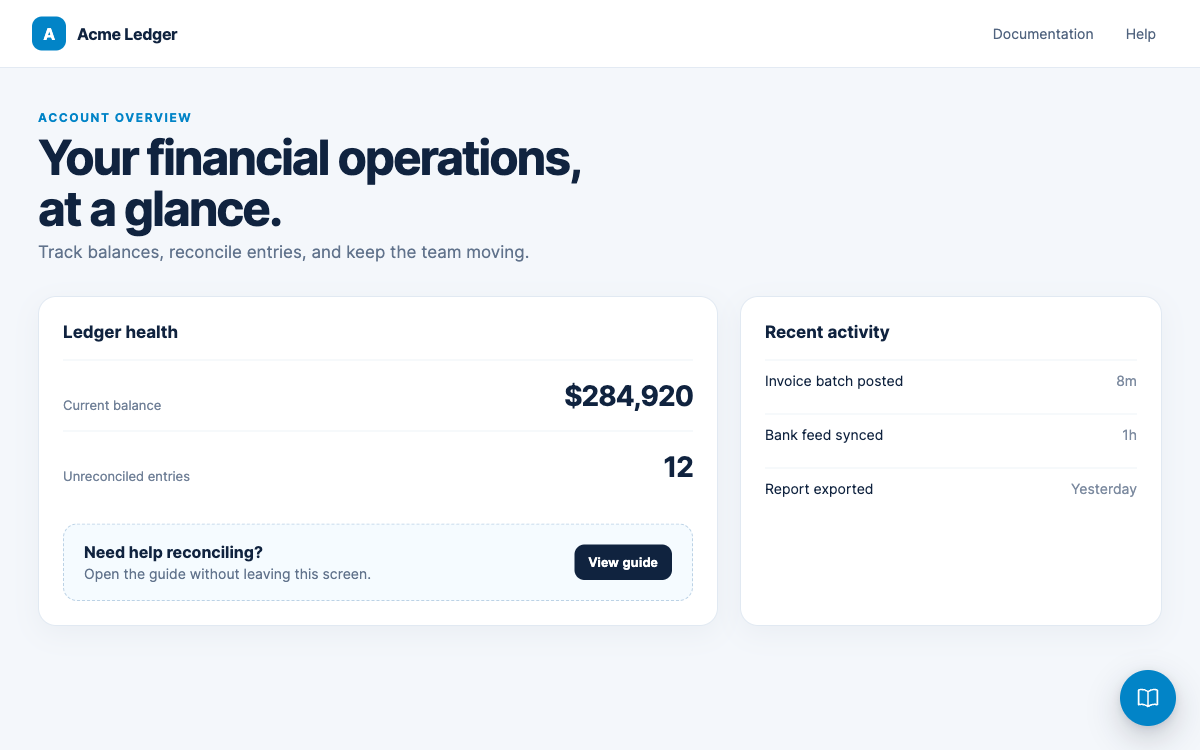
A :::frame presents a screenshot as a bordered figure with an optional
caption, and readers can click the image to zoom.
:::frame caption="The account overview after signing in"
:::
Rendered (click the image):

Videos
A :::video embeds a provider video (YouTube, Vimeo, or Loom) or plays a
self-hosted file. Provider videos load nothing from the provider until the
reader presses play, so a page full of videos makes zero third-party requests.
YouTube loads through its no-cookie domain when it does play.
:::video https://www.youtube.com/watch?v=aqz-KE-bpKQ caption="A sample provider video"
:::

:::video /clips/reconciling.mp4 caption="Reconciling a ledger in 90 seconds"
:::
Rendered (press play to load the embed):
Self-hosted .mp4, .webm, and .ogg files skip the facade and use the
browser's standard video controls. Captions are indexed for search, and the
agent-facing Markdown turns each video into a plain link.
Code groups
A ::::code-group collects fenced code blocks into tabs. Labels come from
each block's filename or title, falling back to the language name, and
every panel keeps its copy button.
::::code-group
```php filename="routes/web.php"
Route::redirect('/', '/docs');
```
```bash title="Terminal"
php artisan docent:check
```
::::
Rendered:
Route::redirect('/', '/docs');
php artisan docent:check
Code blocks
Fenced code blocks are highlighted server-side with dual light and dark themes,
and they get a copy button. Add a filename or title to the info string to
label the block.
```php filename="app/Models/Ledger.php"
Ledger::transaction(fn ($tx) => $tx
    ->debit('cash', 10_00)
    ->credit('sales', 10_00));
```
Rendered:
Ledger::transaction(fn ($tx) => $tx
    ->debit('cash', 10_00)
    ->credit('sales', 10_00));
A title label works the same way and is handy for shell snippets:
php artisan docent:check
Tables
Standard Markdown tables render as styled tables:
| Type      | Normal balance | Example             |
| --------- | -------------- | ------------------- |
| Asset     | Debit          | Cash, Receivables   |
| Liability | Credit         | Loans, Payables     |
Rendered:
| Type | Normal balance | Example |
|---|---|---|
| Asset | Debit | Cash, Receivables |
| Liability | Credit | Loans, Payables |
| Revenue | Credit | Sales, Interest |
Images
Images use standard Markdown. A path beginning with / resolves against your
public directory:

Rendered:
A path that doesn't begin with / resolves against the page's own directory,
and Docent serves it for you:
resources/docs/
billing/
payment-methods.md 
images/billing.png
Nothing has to be copied into public, and the screenshot moves with the page
it illustrates when you reorganize. Docent streams these through the
documentation route, so they inherit its middleware: a site behind auth keeps
its screenshots behind auth too.
Two caveats are worth knowing before you lean on that. Protection is per site
rather than per page, so treat a screenshot as visible to anyone who can reach
the site, not only to readers of the gated page referencing it. And inside an
:::included partial, a relative path resolves against the page doing the
including rather than against the partial, so a partial that always wants the
same image should use a /-rooted path.
PNG, JPEG, GIF, WebP, AVIF, and SVG are served. docent:check reports the rest:
a path that resolves nowhere, one that climbs out of the documentation
directory, and a file type Docent won't serve. A mistyped path fails your build
instead of showing a broken image in production.
For a bordered, captioned, zoomable presentation, wrap the image in a frame instead.
Ready for the app-aware directives? Continue to dynamic content.